> ## Documentation Index
> Fetch the complete documentation index at: https://docs.ekho.com/llms.txt
> Use this file to discover all available pages before exploring further.
# Appointment scheduling
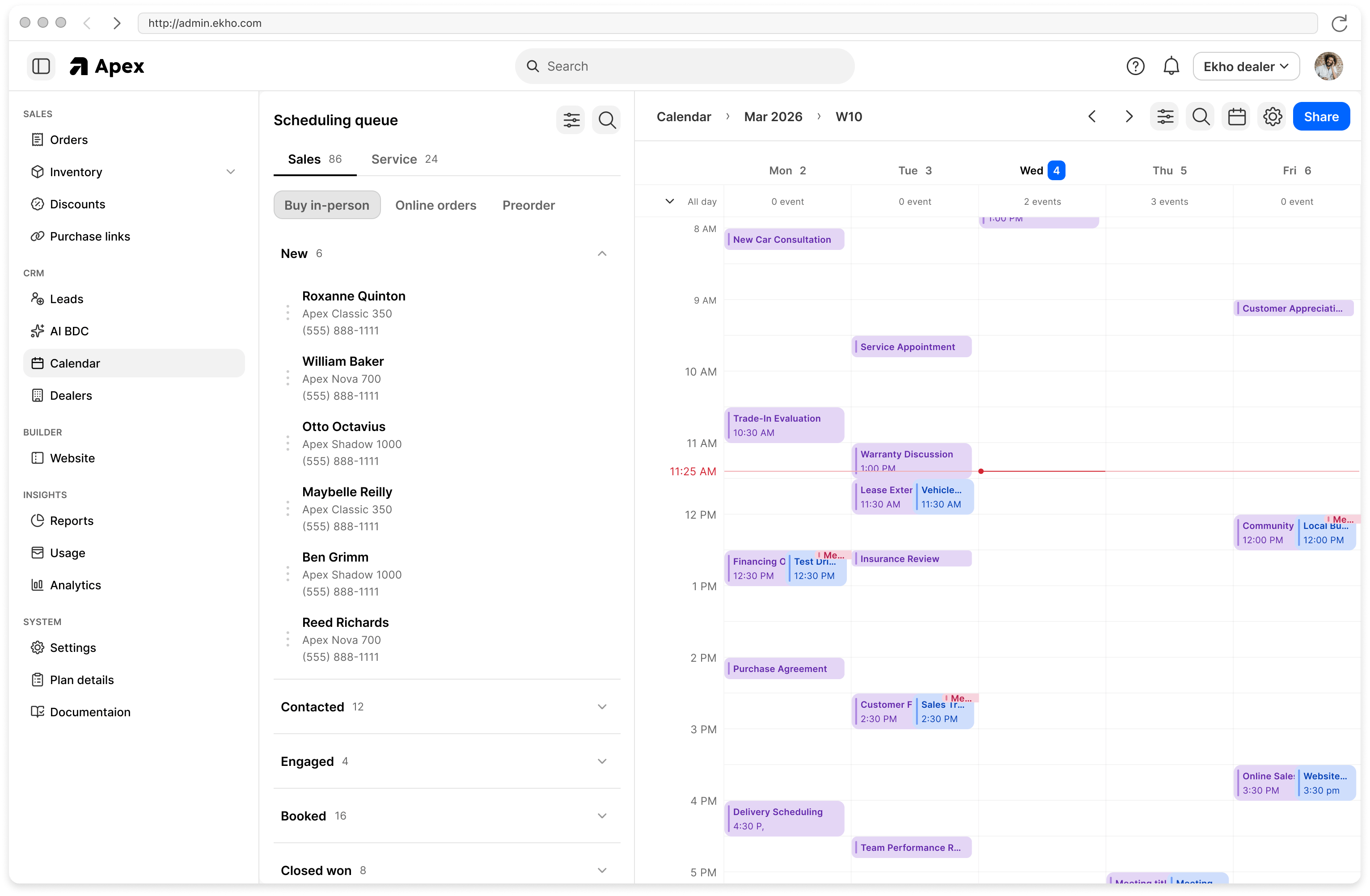
> The agent books onto a real calendar, not into a request form.
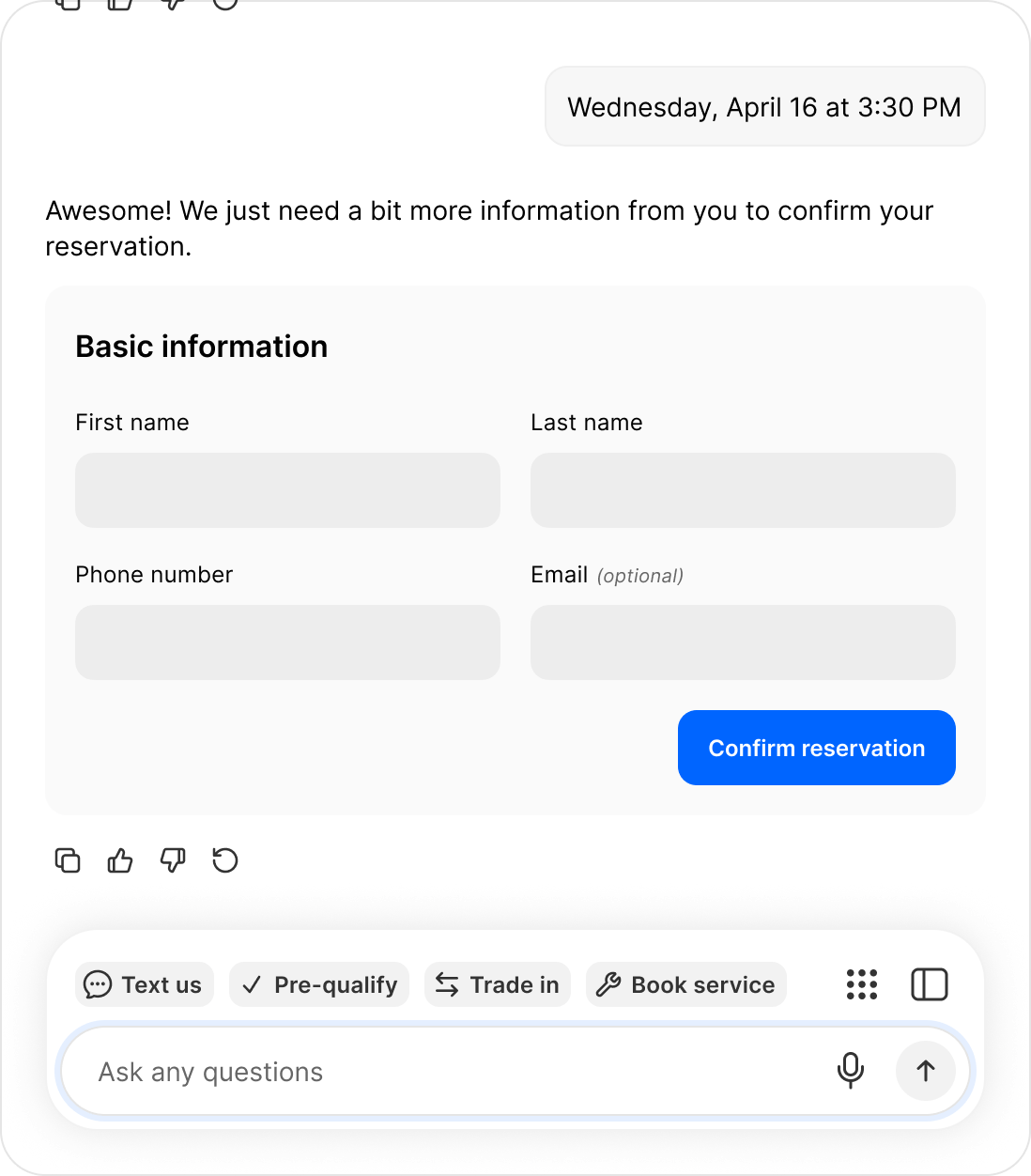
Once a buyer is qualified, the agent offers genuinely open times and books them. No "someone will call you to arrange a time".
 ## Set it up
Under **Product settings → Sales Agent → Capabilities**, in **Booking**.
Each appointment type is configured separately:
| Field | What it does |
| ------------------------ | ------------------------------------------------------------------- |
| **Appointment duration** | Default length for this type |
| **Notification email** | Where booking notifications for this type are sent |
| **Calendar provider** | Which calendar service you use |
| **Calendar ID** | The specific calendar, for example `name@group.calendar.google.com` |
Use a calendar your team actually keeps current. The agent reads it as the truth about who is free.
This is what lets the agent check availability and write bookings back. Without the share, it cannot see or book anything.
So your team hears about a booking without watching the calendar.
Availability comes from the connected calendar, not from your business hours. If the calendar is wrong or unshared, the agent cannot book, no matter what your hours say.
## Appointment types
Sales consultations and showroom visits are available today. Additional types, including test drives and demo rides, appear in the Booking section as they ship.
## What happens on booking
* The appointment lands on the connected calendar
* Notification goes to the address set for that appointment type
* The appointment is attached to the lead
* It travels with the lead when it is forwarded to your CRM
## Booking outside your hours
A buyer messaging at 11pm still gets booked, into the next slot your calendar shows as free. The agent does not pretend somebody is available right now.
## Set it up
Under **Product settings → Sales Agent → Capabilities**, in **Booking**.
Each appointment type is configured separately:
| Field | What it does |
| ------------------------ | ------------------------------------------------------------------- |
| **Appointment duration** | Default length for this type |
| **Notification email** | Where booking notifications for this type are sent |
| **Calendar provider** | Which calendar service you use |
| **Calendar ID** | The specific calendar, for example `name@group.calendar.google.com` |
Use a calendar your team actually keeps current. The agent reads it as the truth about who is free.
This is what lets the agent check availability and write bookings back. Without the share, it cannot see or book anything.
So your team hears about a booking without watching the calendar.
Availability comes from the connected calendar, not from your business hours. If the calendar is wrong or unshared, the agent cannot book, no matter what your hours say.
## Appointment types
Sales consultations and showroom visits are available today. Additional types, including test drives and demo rides, appear in the Booking section as they ship.
## What happens on booking
* The appointment lands on the connected calendar
* Notification goes to the address set for that appointment type
* The appointment is attached to the lead
* It travels with the lead when it is forwarded to your CRM
## Booking outside your hours
A buyer messaging at 11pm still gets booked, into the next slot your calendar shows as free. The agent does not pretend somebody is available right now.